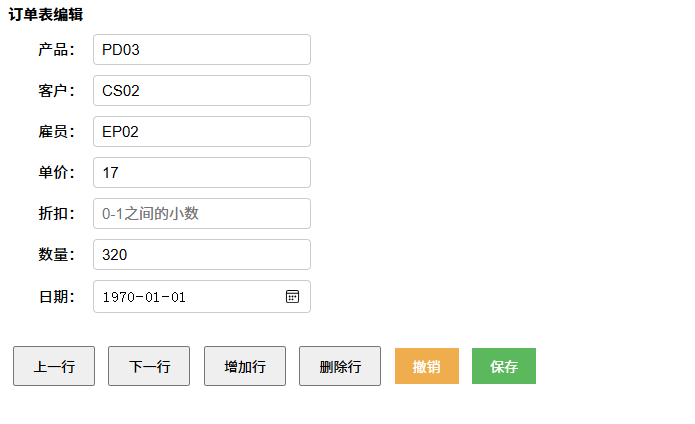
所有的代码都在AfterLoad事件中,可以看到代码逻辑和我们之前在Foxtable编程完全一样:
订单编辑
关于在前端js调用Foxtable的基础知识,我们前面已经介绍完毕了,现在开始接触一些具体的例子,第一个例子是一个普通的订单编辑窗口。
本示例可参考示例文件"CaseStudy\WebViewer\调用Foxtable对象.Table"的窗口"订单编辑"。
本示例完全基于JS实现了订单的编辑、删除、增加、保存和撤销等功能:
所有的代码都在AfterLoad事件中,可以看到代码逻辑和我们之前在Foxtable编程完全一样:
'''Async
Dim
wv
As
WebViewer = e.Form.Controls("WebViewer1").WebViewer
Await
wv.EnsureCoreWebView2Async(Nothing)
'初始化浏览器
wv.CoreWebView2.AddHostObjectToScript("Orders",
Tables("订单"))
'注入订单表
'定义订单编辑页面
Dim
html
As
String
=
<![CDATA[
<!DOCTYPE html>
<html>
<head>
<meta charset="utf-8" />
<title>订单编辑</title>
<style>
*{font-size:15px; margin:5px;}
label{display:inline-block; width:70px; text-align:right;}
input{padding:6px 8px; width:200px; border:1px solid #ccc;
border-radius:4px;}
button{padding:8px 18px; font-size:14px; margin:8px 5px;
cursor:pointer;}
.btn-box{margin-top:20px;}
</style>
</head>
<body>
<h3>订单表编辑</h3>
<div>
<label>产品:</label><input
type="text" id="txtProduct" placeholder="例如:PD01"
/><br>
<label>客户:</label><input
type="text" id="txtCustomer" placeholder="例如:CS03"
/><br>
<label>雇员:</label><input
type="text" id="txtEmployee" placeholder="例如:EP02"
/><br>
<label>单价:</label><input
type="number" id="txtPrice" step="0.01" min="0" placeholder="数值"
/><br>
<label>折扣:</label><input
type="number" id="txtDiscount" step="0.01" min="0" max="1" placeholder="0-1之间的小数"
/><br>
<label>数量:</label><input
type="number" id="txtQty" step="1" min="1" placeholder="整数"
/><br>
<label>日期:</label><input
type="date" id="txtDate" /><br>
</div>
<div class="btn-box">
<button onclick="prevRow()">上一行</button>
<button onclick="nextRow()">下一行</button>
<button onclick="addRow()">增加行</button>
<button onclick="delRow()">删除行</button>
<button onclick="cancelEdit()"
style="background:#f0ad4e;color:#fff;border:none;">撤销</button>
<button onclick="saveRow()"
style="background:#5cb85c;color:#fff;border:none;">保存</button>
</div>
<script>
//
获得订单表
const Orders =
window.chrome.webview.hostObjects.sync.Orders;
//
极简工具函数:OADate浮点数转JS可读日期
function oaToDate(oaDate) {
const baseDays = 25569;
return new Date((oaDate - baseDays) * 86400 * 1000);
}
//
读取当前行数据到各输入框
function loadCurrentRowData() {
const currRow = Orders.Current;
if(currRow === null){
//
无当前行,清空所有输入框
document.getElementById("txtProduct").value = "";
document.getElementById("txtCustomer").value = "";
document.getElementById("txtEmployee").value = "";
document.getElementById("txtPrice").value = "";
document.getElementById("txtDiscount").value = "";
document.getElementById("txtQty").value = "";
document.getElementById("txtDate").value = "";
return;
}
//
有当前行,读取数据写入输入框
document.getElementById("txtProduct").value = currRow["产品"];
document.getElementById("txtCustomer").value = currRow["客户"];
document.getElementById("txtEmployee").value = currRow["雇员"];
document.getElementById("txtPrice").value = currRow["单价"];
document.getElementById("txtDiscount").value = currRow["折扣"];
document.getElementById("txtQty").value = currRow["数量"];
let dtVal = currRow["日期"];
if(dtVal){
let date =
oaToDate(dtVal);
//转为js日期
document.getElementById("txtDate").value =
date.toISOString().split('T')[0];
}else{
document.getElementById("txtDate").value = "";
}
}
// 上一行
function prevRow() {
let currPos = Orders.Position;
if (currPos > 0) {
Orders.Position = currPos - 1;
loadCurrentRowData();
}else{
alert("已经是第一行!");
}
}
// 下一行
function nextRow() {
let currPos = Orders.Position;
let rowCount = Orders.Count;
if (currPos < rowCount - 1) {
Orders.Position = currPos + 1;
loadCurrentRowData();
}else{
alert("已经是最后一行!");
}
}
// 增加行
function addRow() {
Orders.AddNew();
loadCurrentRowData();
alert("新增空白订单行,可直接编辑!");
}
// 删除行
function delRow() {
const currRow = Orders.Current;
if(currRow === null){
alert("暂无当前订单行,无法删除!");
return;
}
if(confirm("确定要删除当前订单行吗?")){
currRow.Delete();
loadCurrentRowData();
alert("当前行已删除!");
}
}
// 撤销编辑
function cancelEdit() {
const currRow = Orders.Current;
if(currRow !== null){
loadCurrentRowData();
alert("已撤销编辑,恢复为当前行原始数据!");
}
}
// 保存
function saveRow() {
const currRow = Orders.Current;
if(currRow === null){
alert("暂无当前订单行,无需保存!");
return;
}
try{
currRow["产品"]
= document.getElementById("txtProduct").value.trim();
currRow["客户"] =
document.getElementById("txtCustomer").value.trim();
currRow["雇员"] =
document.getElementById("txtEmployee").value.trim();
currRow["单价"] =
parseFloat(document.getElementById("txtPrice").value);
currRow["折扣"] =
parseFloat(document.getElementById("txtDiscount").value);
currRow["数量"]
= parseInt(document.getElementById("txtQty").value);
currRow["日期"]
= new Date(document.getElementById("txtDate").value);
currRow.Save();
alert("当前订单数据保存成功!");
}catch(err){
alert("保存失败:"
+ err.message);
}
}
//
从当前行加载数据到输入框
window.onload =
() => { loadCurrentRowData(); };
</script>
</body>
</html>
]]>.Value
wv.NavigateToString(html)
与Foxtable事件联动
如果你既要在Foxtable操作,也要在Web页面操作,那么就需要二者配合起来。
例如前面用Web做了一个订单编辑页面,希望Foxtable中选择不同的行时,能自动刷新订单编辑页面,
首先查阅上面的代码,发现负责刷新数据的js函数是loadCurrentRowData,然后在订单表的CurrentChanged事件加上代码:
If
Forms("编辑订单").Opened
Then
Dim
wv
As
WebViewer = Forms("编辑订单").Controls("WebViewer1").WebViewer
wv.CoreWebView2.ExecuteScriptAsync("loadCurrentRowData()")
End
If
提醒:加上事件联动后,你可以在前面AfterLoad事件代码中,找到上一行、下一行的按钮代码,删除对loadCurrentRowData的调用。